Feature 01
Connect once, map as a drive
Add your cloud account in the desktop app and map it to a Windows drive letter — just like a local hard disk.
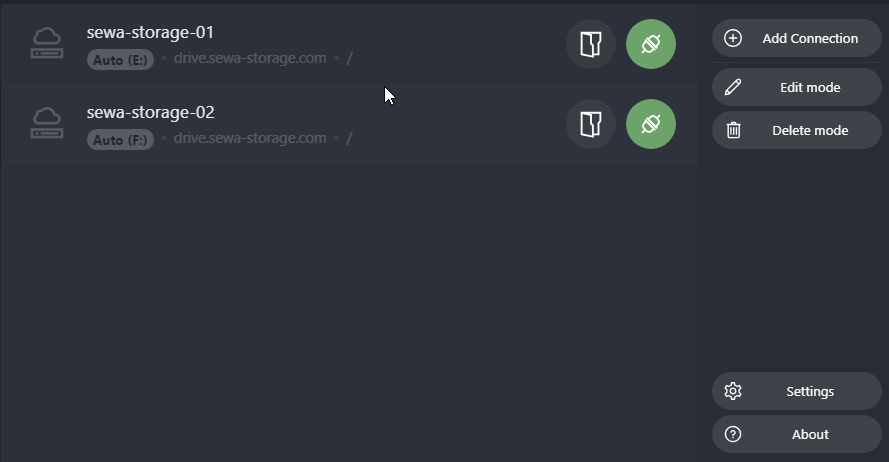
See how sewa-storage works as a real drive on your Windows PC — then try the demo server yourself.
Add your cloud account in the desktop app and map it to a Windows drive letter — just like a local hard disk.
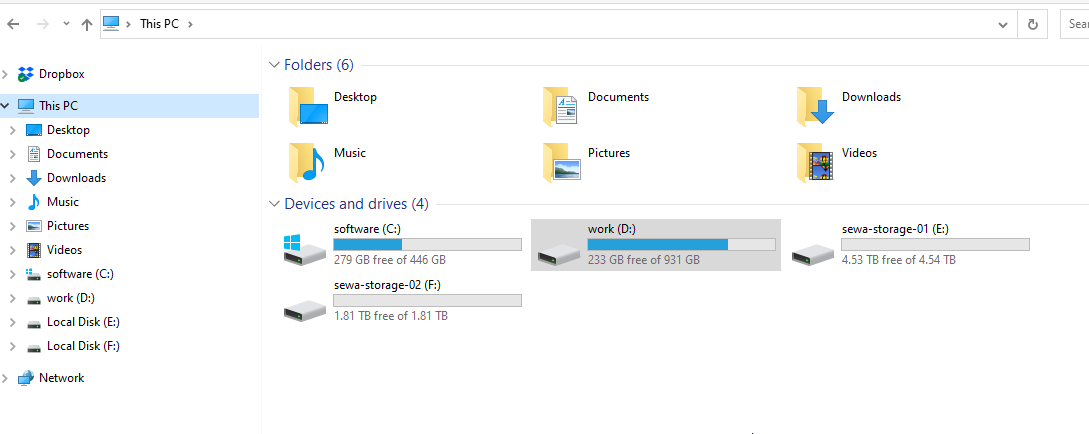
Your cloud storage appears under This PC with full capacity — browse, copy, and save files the same way you use any other drive.
Sign in from the browser to manage files, share file link, and user settings.
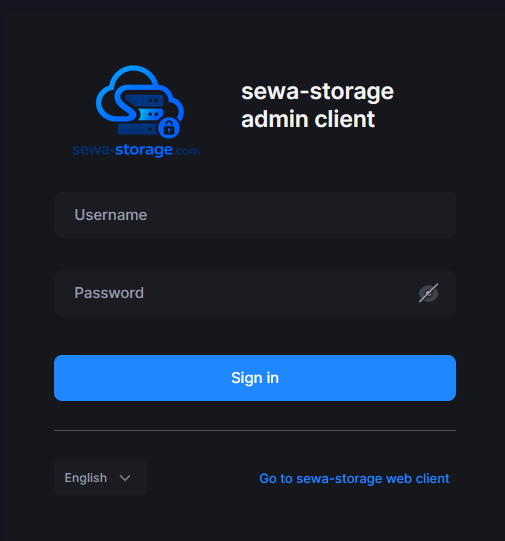
Use these details to log in and test the demo. You can update them later when your live demo account is ready.
Sample demo account — update username and password when your real demo server is ready.
Follow the step-by-step videos on the Get Started page to connect and log in.
Go to Get Started →